

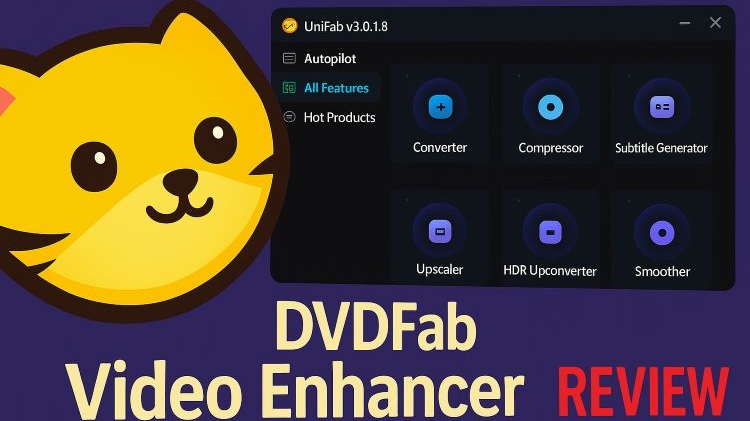
DVDFab Video Enhancer AI, now renamed as UniFab, claims it can revive your old, blurry videos using AI. You don’t need editing expertise to use it: the interface is filled with one-click options, each promising to fix or enhance your footage in specific ways.
So, how effective is DVDFab Video Enhancer AI in real-world use? Is it actually free or are there hidden limitations? And where does it stand when compared to professional tools like Eassiy Video Converter Ultimate? This guide covers it all. You’ll learn how to install DVDFab Video Enhancer AI on Windows, explore its enhancement tools, and see what kind of results we experienced during testing, along with real user feedback to help you decide if it’s worth your time.
Features of DVDFab Video Enhancer AI
DVDFab, to say the UniFab’s Video Enhancer AI, mostly revolves around three main tools: the AI Upscaler, Denoiser, and Video Converter. Together, they promise to boost your video’s clarity, clean up imperfections, and prep it for re-export. On paper, that sounds like the full package, but here’s what using them actually feels like.
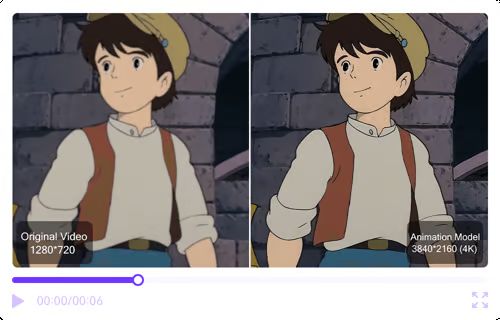
First up is AI Upscaler, which is the main attraction. It lets you enhance low-res videos all the way from 720p up to 1080p, 4K, 8K, and even 16K using AI. There are two enhancement models built-in: Universal and Anime (the latter meant for cartoons or animated content).
In our tests, though, it became clear that things weren’t flawless. Upscaling worked decently for 1080p and 4K, but once we pushed higher or used footage with low lighting, it introduced strange facial textures and some weird skin tones.
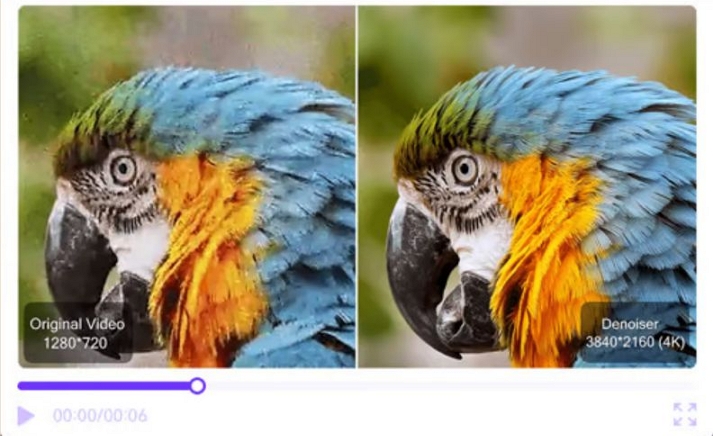
Denoiser AI is meant to fix grainy or noisy clips, especially from phones or older cameras in dark environments. And to be fair, it does scrub away static noise and color speckles quite well.
The problem is that it tries a little too hard. Most often or not, the resulting videos start to lose their natural texture and end up looking overly smooth, almost plastic-like.
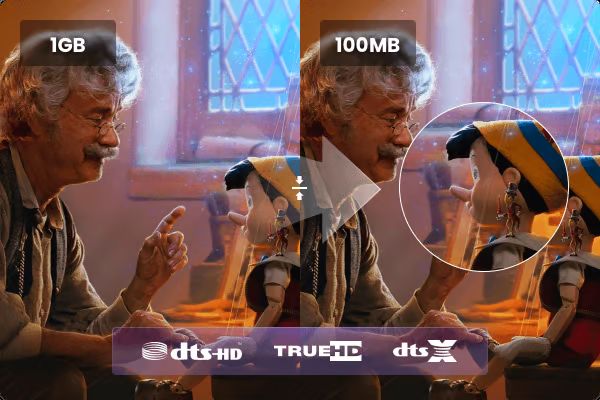
Lastly, there’s the built-in Video Converter, which does a decent job. It supports over 1,000 formats, including newer ones like H.265. Compression is handled well and file sizes do go down without major quality loss.
It’s not mind-blowingly fast, but it’s reliable and good enough to wrap your enhanced clip and send it where it needs to go.
Is DVDFab Video Enhancer AI Free?
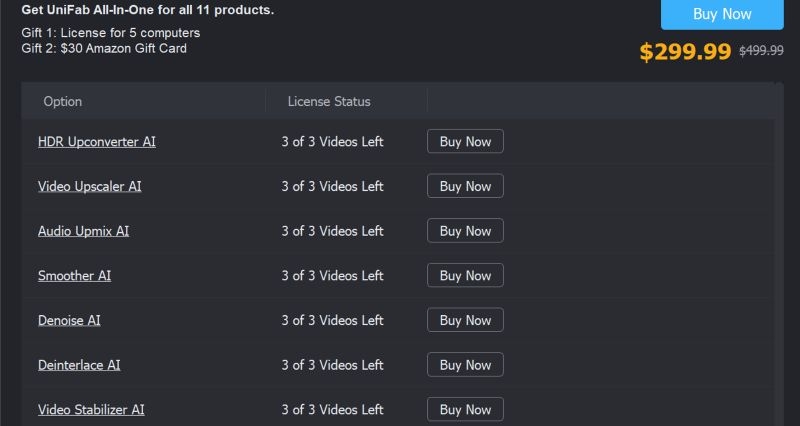
While UniFab Video Enhancer AI (formerly DVDFab) isn’t truly free, it does let you test each feature, like Video Upscaler AI or Denoiser AI, on up to 3 videos. Once the limit is reached, you’ll need to buy a license to continue using it.
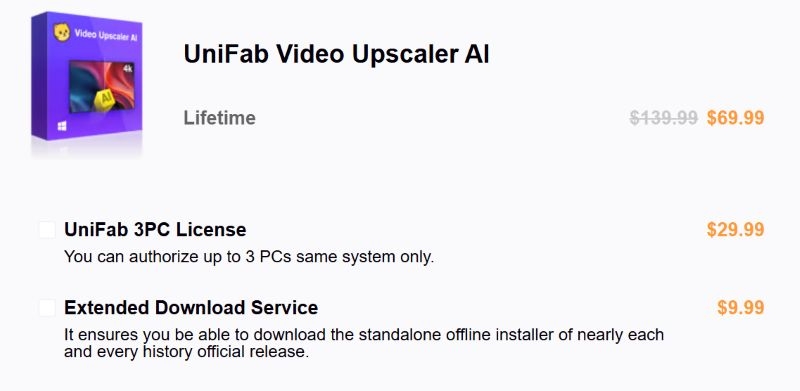
If you're only interested in the Upscaler AI module, the standalone tool costs US$ 69.99 (after usual discounts) for lifetime use.
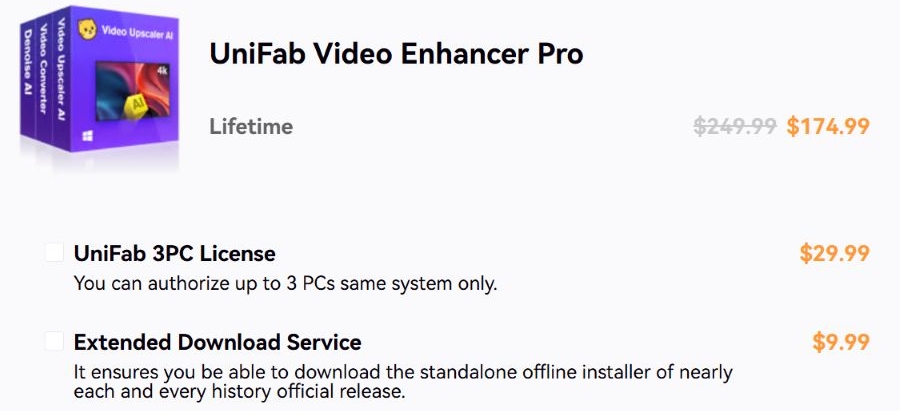
For both Upscaler + Denoiser bundled together under the Enhancer Pro package, the price is US$ 174.99 (usual sale price).
And if you want everything—AI HDR, smoothing, video converter, and all other modules, the All-in-One license is currently listed at US$ 299.99 (after discount).
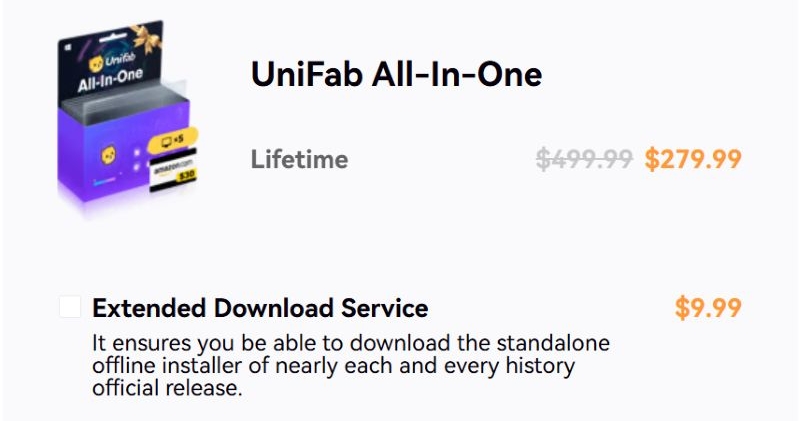
All licenses are lifetime, but activating on more than one device or using the 3-PC license or offline installer will cost extra.
As of now, the software is available only for Windows 7 through 11. There is no Mac version officially offered.
How to Use DVDFab Video Enhancer AI
This section covers everything, from downloading and installing DVDFab Video Enhancer AI (now called UniFab) to checking if it's safe for your PC. We’ll also take a quick look at the cracked version floating around online and then dive into a full test of how well it actually enhances video quality.
Download DVDFab Video Enhancer AI for Free
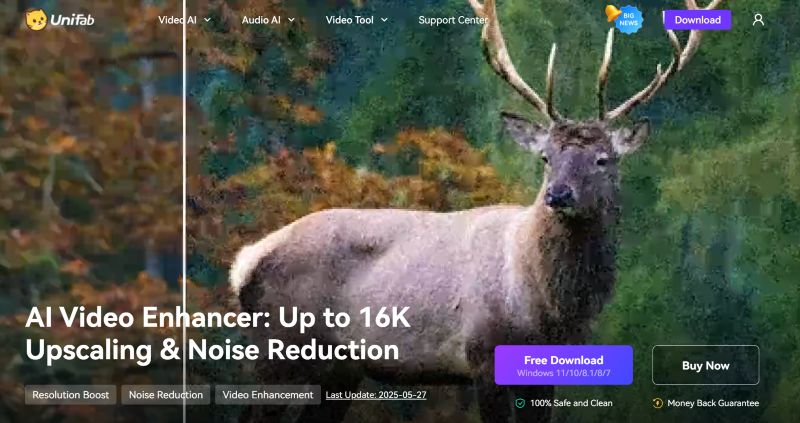
To begin, head to UniFab’s official website and navigate to the AI Video Enhancer section. There, you’ll find a clear Free Download button. Click on it to download the installer file on your computer (Windows 7 to 11).
Once downloaded, run the installer and complete the setup.
Is DVDFab Video Enhancer AI APK Safe?
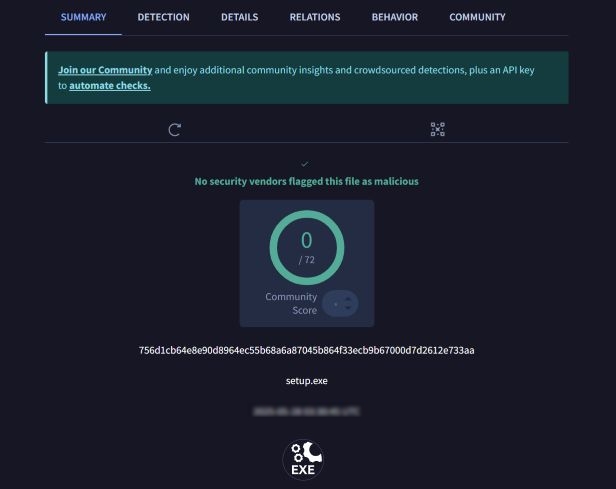
To confirm safety, we ran the v3.0.1.8 executable file through VirusTotal. The results were clean—0 detections across 72 vendors. This gives solid reassurance that the official installer is free of malicious code and safe to install on your system.
Is DVDFab Video Enhancer AI Crack Secure?
While searching online, it is easy to come across the cracked versions of DVDFab or UniFab’s Video Enhancer AI. We tested one such version that claimed to bypass activation. It turned out to be a 1.1 MB broken file, which didn’t even launch properly. Windows Defender outright blocked it.
In short, these versions are unreliable, and not worth the risk. Stick to the official one.
Enhance Video Quality with DVDFab
Once installed and launched, you’ll land on the main interface. From here, pick the AI module you want—Upscaler, in this case. Each module runs independently, so focus on one feature at a time.
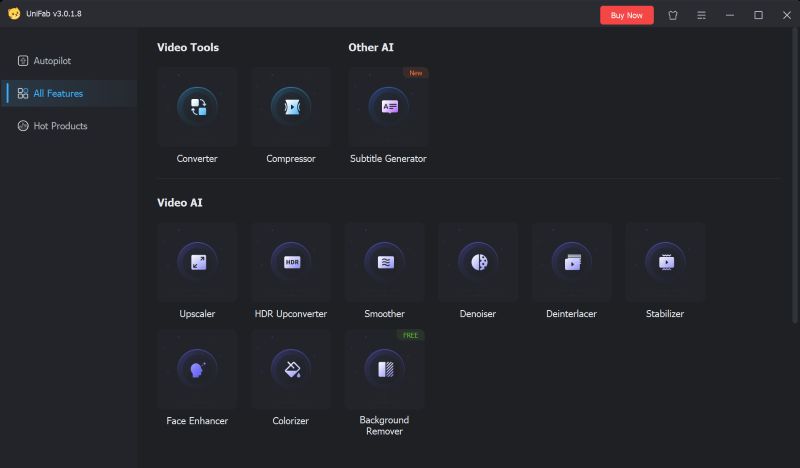
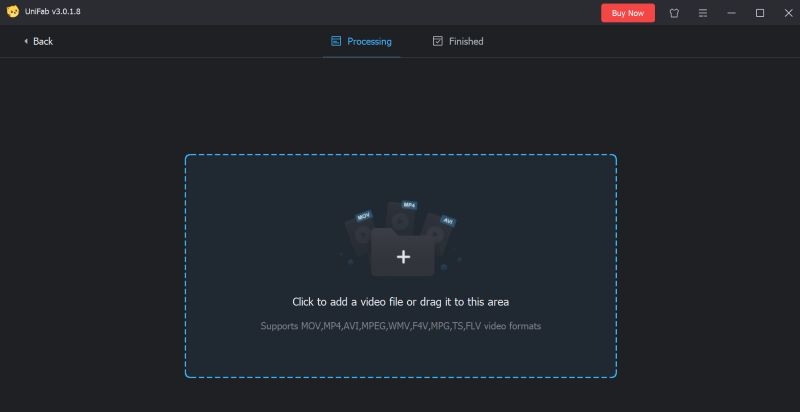
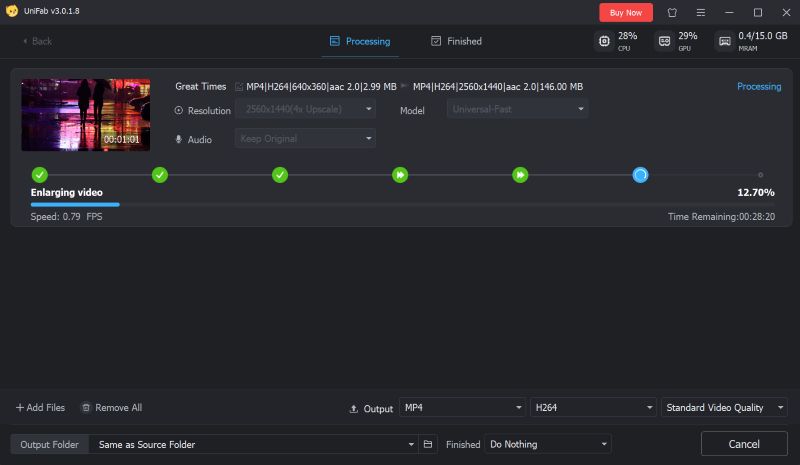
Step 1. Click onUpscaler and load your video using the file picker. In our test, we selected a short clip: 1 minute and 1 second, originally in 640x360 resolution, MP4 H.264 format.
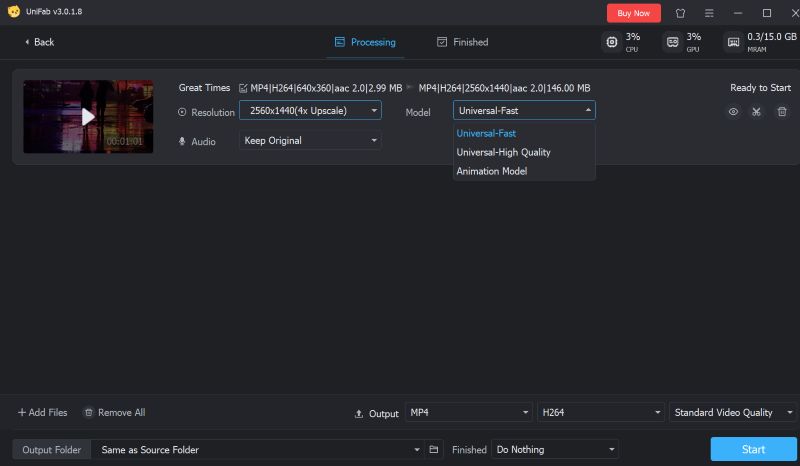
Step 2. After importing the clip, we selected 4x and picked the Universal (Fast) model. Other model options include Universal (High Quality) and Animation.
Step 3. You can also set your output format at the bottom: DVDFab limits this to MP4, MKV, or MOV containers using H.264 or H.265 encoding. You can also choose your destination folder before clicking Start.
Step 4. Processing wasn't quick. Although the actual video was just a minute long, the upscaling took significantly longer, around 38 minutes in total. Here’s how the timeline broke down:
- Setting up runtime environments: 1 min 48 sec
- Downloading video models: 1 min 44 sec
- Enlarging the video: nearly 31 minutes
Editors’comments:
- The final output turned a lightweight 3 MB file into a hefty 146 MB render.
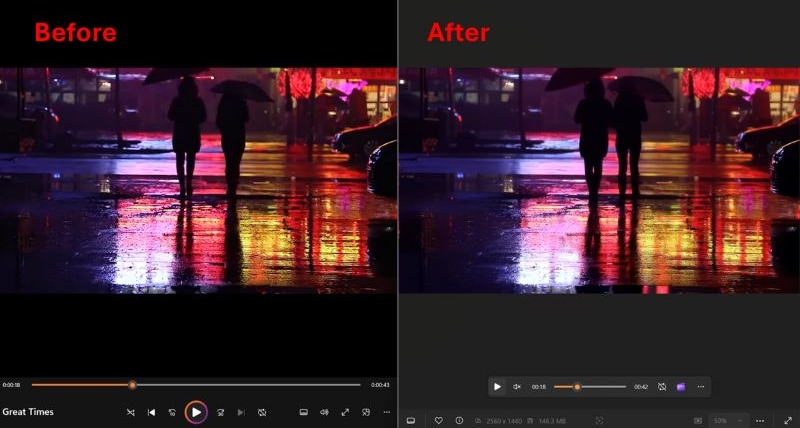
- Although the resolution was visibly bumped up to 2560 × 1440, the improvements weren’t quite as compelling as expected.
- The overall finish had a plastic sheen. However, the biggest disappointment was that the upscaled version missed out on dynamic lighting and some colors appear dimmer than the original.
Real User Experience Online
Our hands-on test told part of the story, but it's just as important to see how the broader community views UniFab (formerly DVDFab Video Enhancer AI). And let’s be honest, the feedback online doesn’t exactly sing praises.
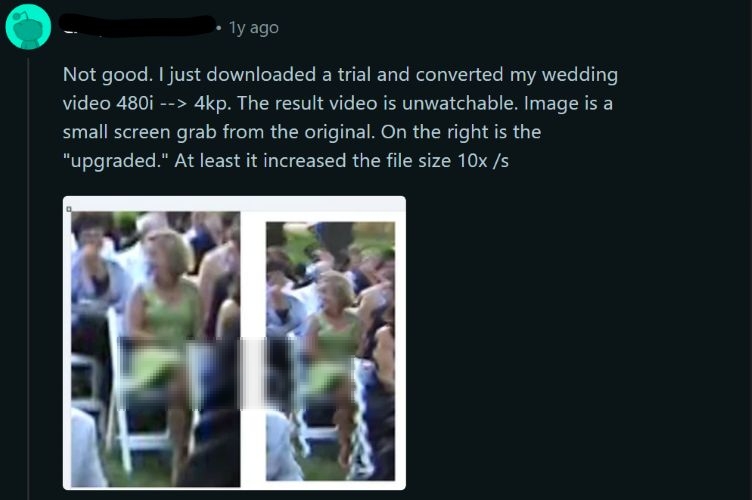
One user who tried converting their wedding video from 480 to 4K described the result as outright “unwatchable”. The side-by-side comparison they shared made it clear: the so-called upgrade only bloated the file size by tenfold without delivering any actual clarity or sharpness.
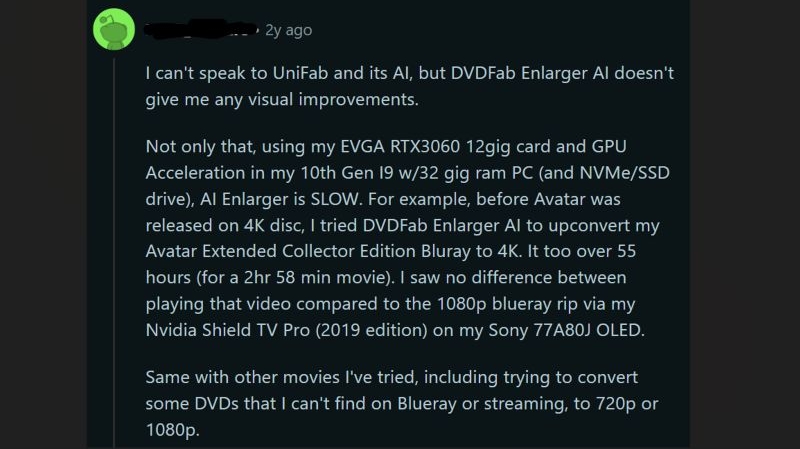
Another comment highlighted just how slow and inefficient the DVDFab Enlarger AI (the original branding of UniFab) could be. Using a high-end RTX 3060 GPU and 10th-gen i9 processor, the user tried converting Avatar from Blu-ray to 4K. The result? A staggering 55+ hours of processing for a video that ended up looking no better than a regular 1080p rip.
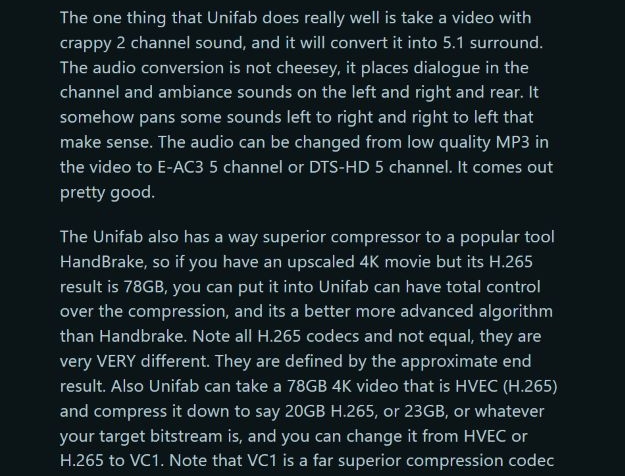
One more perspective came from a user who did appreciate UniFab—but not for its visuals. They praised it for audio conversion and compression, pointing out how well it transforms stereo audio into 5.1 surround sound and handles H.265 compression better than HandBrake.
(Note: These features are part of the full UniFab All-in-One suite, not just the Enhancer tool.)
Top Alternative to DVDFab Video Enhancer AI
UniFab or DVDFab Video Enhancer AI promises AI-powered video improvement. However, in real use, the results are often disappointing. If you're after a tool that actually delivers clear improvements, Eassiy Video Converter Ultimate is a better option.
Eassiy uses proven algorithms that sharpen your footage. Whether your clip is shaky, blurry, or low-quality, it really restores detail and improves clarity in a natural way, every single time.
Eassiy gives you four major enhancement options, depending on what your video needs. The denoiser removes grain and noise. The stabilizer smooths out shaky clips. The upscaler lifts your video to 4K or 8K without ruining the color or sharpness. And the quality editor lets you adjust brightness, contrast, saturation, and fix interlaced lines.
Best of all, you don’t need to run these tools one at a time. You can apply them together and preview instantly. Add to that its 60x real-time processing speed, so you don’t have to sit around for hours waiting.
Steps to Use Eassiy Video Converter Ultimate on Windows or Mac.
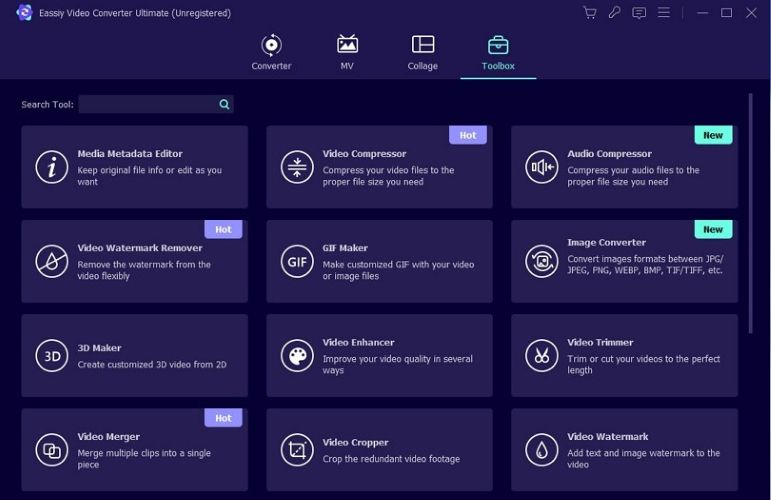
Step 1. Install Eassiy Video Converter Ultimate on your computer. Once it’s launched, navigate to the Toolbox tab at the top and open the Video Enhancer tool from the list.
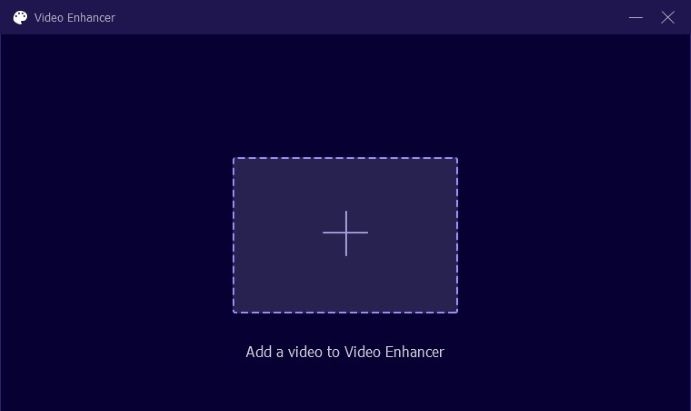
Step 2. Drag your video file into the interface or tap the + to browse and manually import it.
Step 3. After the video loads, you’ll see four key options:
- Upscale Resolution
- Remove Video Noise
- Optimize Brightness and Contrast
- Reduce Video Shaking
Tick the enhancements you’d like to apply based on your footage’s needs.
Step 4. Now adjust the format and resolution below the enhancement panel. Use the Format drop-down to choose your output format and resolution.
Step 5. Hit the Preview button. This will show a quick render of what your enhanced result will look like, which is ideal for checking the output before committing.
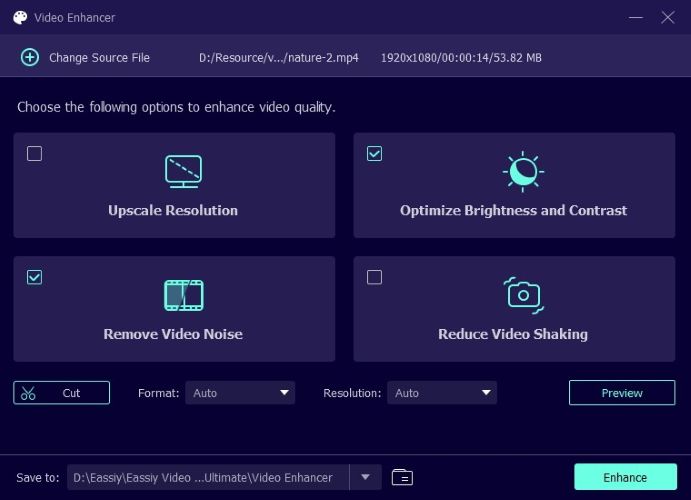
Step 6. Finally, click Enhance to begin the process. Eassiy will process your video and pop up a confirmation once it’s complete.
Wrap Up
DVDFab Video Enhancer AI is a tricky tool to judge. It presents itself as an AI-based solution, but when put to the test, the actual output rarely meets real-world expectations. Upscaling is slow, results feel artificial, and the resultant footage often isn’t worth the wait.
Eassiy Video Converter Ultimate, by contrast, delivers visible results, whether you're restoring old videos or working on professional content. It avoids overloading your system, speeds up processing, and gives you cleaner, more watchable footage. If you're looking for something reliable and practical, especially for personal or meaningful projects, Eassiy stands out as the smarter choice.