

When HBO Max is not loading, you may see a blank purple screen, an endless loading circle, a black screen, or an error message instead of your favorite show. The problem can occur on smart TVs, Roku, Fire TV, Apple TV, Android devices, or web browsers such as Chrome and Safari. However, it doesn't always mean the app or service is down. Outdated app data, expired login sessions, network connection problems, and browser playback settings can all prevent Max from loading properly. The key is to identify the cause before wasting time on unnecessary troubleshooting. This guide covers practical fixes for different devices and common loading errors, starting with how to check whether HBO Max is experiencing a service outage.
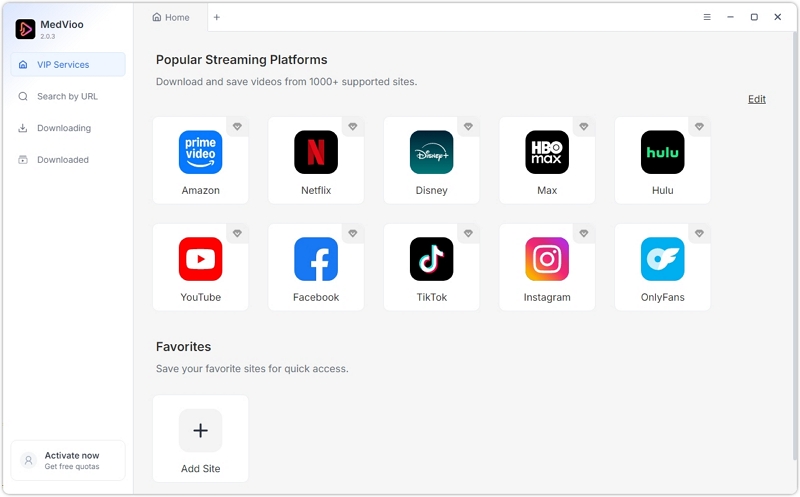
Offline playback not only provides a smoother viewing experience but can also help you avoid many online playback issues. When HBO Max is working normally, you can use MedVioo Video Converter to save supported videos as MP4 files and play them anytime, anywhere with a local video player. This way, you won't have to worry about online issues such as videos failing to load or showing a black screen.
View MedViooQuick Checks for HBO Max Not Loading
Start with these three quick checks first. They can help identify simple issues early and save you from trying more advanced fixes you may not need. The whole process takes a few minutes.
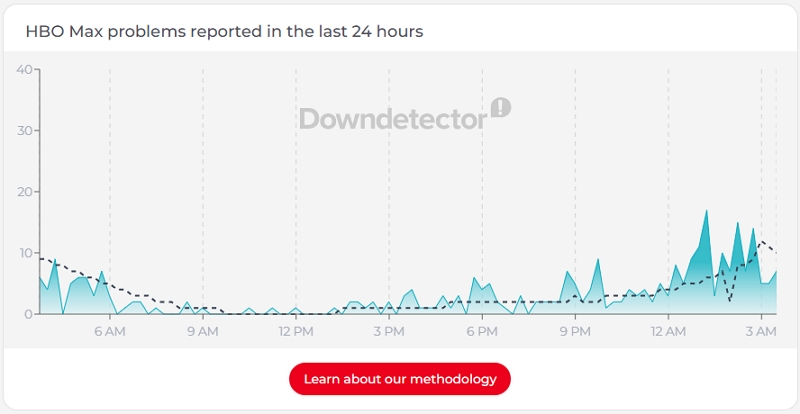
1. Check If HBO Max Is Down
Visit Downdetector or check the status banner at help.max.com. If reports spike past 1,000 in 15 minutes, HBO's authentication servers are down. The app will hang on that purple loading logo until their team fixes the backend.
2. Check HBO Max Build Version
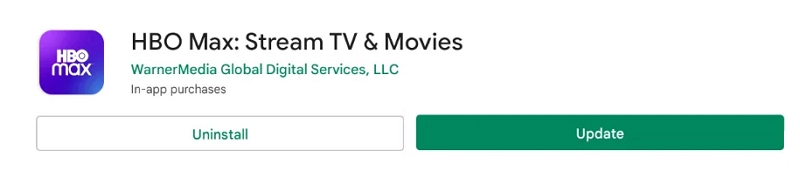
If HBO Max app on your devices like Apple TV or Firestick skipped an update or hasn't been updated in a while, the app may fail its security handshake on boot. Simply head to your app store, search for HBO Max, and update it.
3. Relogin HBO Max
Still spinning? You could have a corrupted session token. Upon login, Max writes a JSON Web Token (JWT) to local storage. This lets you bypass the sign-in screen on subsequent launches. But if that token fails to refresh or gets mangled during a soft crash, the app enters a silent boot loop. It requests account authorization, receives garbage data back, and hangs forever. You can do a master session reset by logging out and back in:
- Open a browser, log into max.com/account, and select Sign Out of All Devices.
- Force-close the HBO Max app on your device.
- Relaunch the app and enter your credentials fresh.
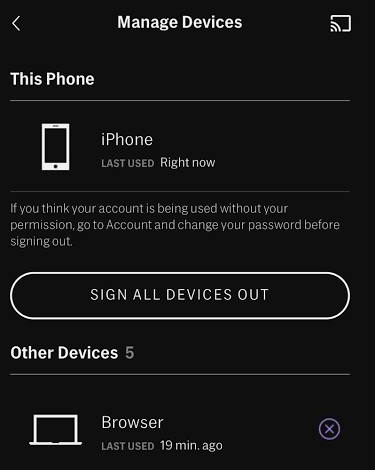
This step invalidates the stale local authorization key and forces HBO Max's auth servers to issue a clean token. In our testing across Roku OS and Android TV devices, this single move clears over half of all infinite splash-screen freezes on launch.
HBO Max Not Loading: Identify the Problem and Find the Right Fix
If the quick checks above don't solve the problem, try the more targeted fixes below based on how HBO Max is failing to load. This can help you find the right solution faster.
Fix 1. Clear HBO Max Cache
If HBO Max keeps showing an infinite loading wheel, an overloaded app cache may be the cause. Cached files help HBO Max load content faster, but accumulated or corrupted cache data can interfere with the app's normal operation. Clearing the cache removes these temporary files and gives the app a fresh start. Select your TV below to find out how to clear the cache.
Tip: Make sure you have your login details handy, in case you need to sign in again. Besides, you may need to redownload any downloaded content.
Amazon Fire TV and Firestick
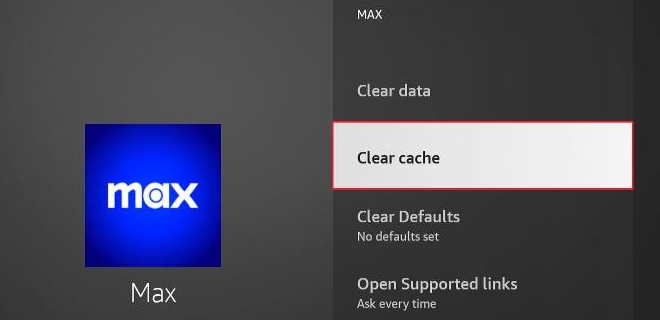
Fire OS holds onto stale cache files like a vise. When Max freezes on that purple logo, wiping both cache fixes it almost every time.
- Go to Settings from the main Fire TV home bar.
- Select Applications, then click Manage Installed Applications.
- Scroll down the list and select HBO Max.
- Click Clear Cache.
Roku Devices
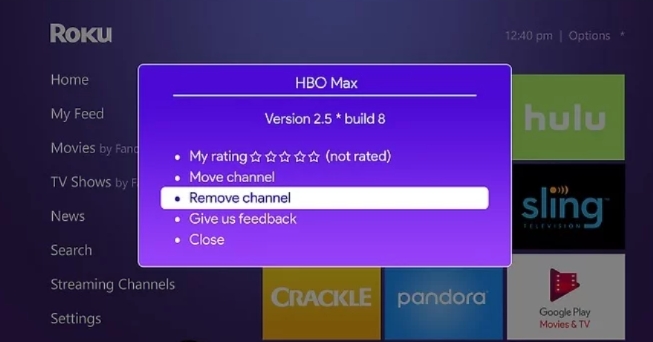
Roku OS lacks a cache button. You have to reinstall HBO Max to clear its corrupted cache and data.
- Select HBO Max on the Roku home screen.
- Press the Star (*) button on your remote.
- Select Remove app or Remove channel, then confirm.
- Restart your Roku device.
- Search for HBO Max in the Streaming Store and select Add app.
- Open HBO Max again and sign in.
Samsung Smart TV(Tizen)
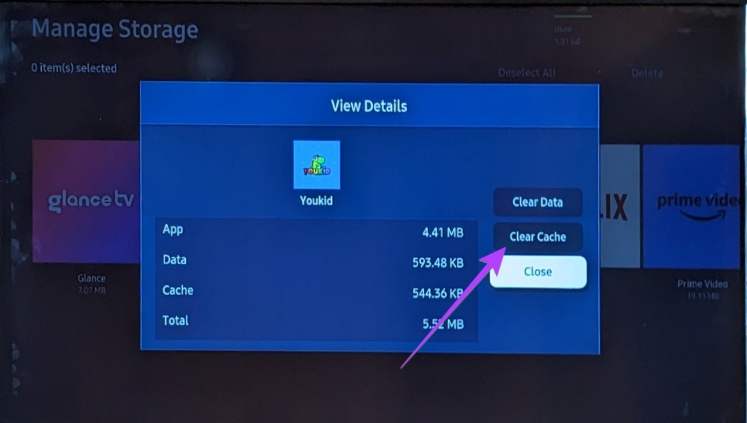
If your Samsung TV supports it, you can use Device Care to check HBO Max's storage and clear its cache to help resolve loading issues.
- Press the Home button on your Samsung remote and go to Settings > Support > Device Care.
- Select Manage Storage, find HBO Max, and choose View Details.
- Select Clear Cache if the option is available.
LG Smart TV (webOS)
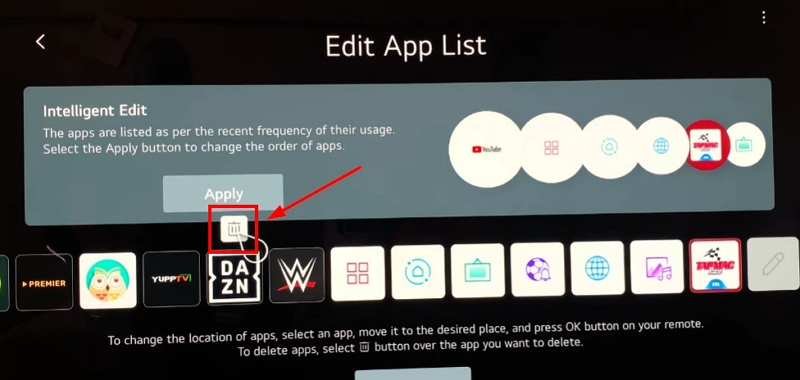
Reinstalling the app can remove its locally stored cache and data, which may help resolve playback issues, loading errors, or other app-related problems.
- Press the Home button on your LG TV remote.
- Navigate to the HBO Max app in the app list.
- Select Edit App List or press and hold the HBO Max app icon until the edit options appear.
- Select the Delete or trash can icon and confirm to uninstall the app.
- Open Apps or the LG Content Store, search for HBO Max, and reinstall it.
- Launch the app and sign in to your account again.
Apple TV 4K (tvOS)
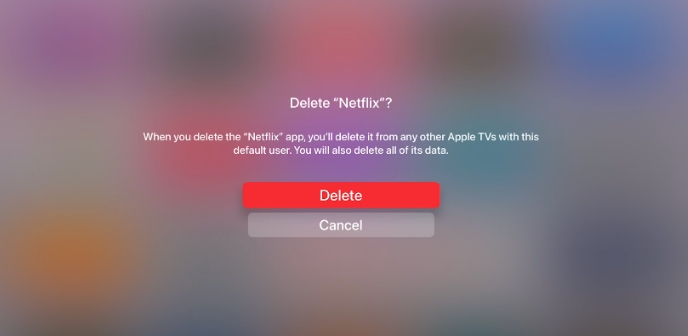
Apple hides system cache controls on tvOS. You cannot manually clear an app's cache. Your only options are to force-close the app or delete it entirely.
- Double-click the TV/Control Center button on your Siri Remote to open the App Switcher.
- Swipe to HBO Max and swipe up on the clickpad to force-close the app.
- Reopen HBO Max. If the black screen persists, highlight the HBO Max icon on your Home Screen. Press and hold the center of the clickpad until the options menu appears, then press the Play/Pause button and select Delete or Delete App.
- Download HBO Max from the App Store again.
Android TV and Google TV
Sony Bravia TVs, Chromecast with Google TV, and Nvidia Shield Pro (2019) share the exact same Android app management.
- Open System Settings.
- Select Apps, then click See all apps.
- Find and select HBO Max.
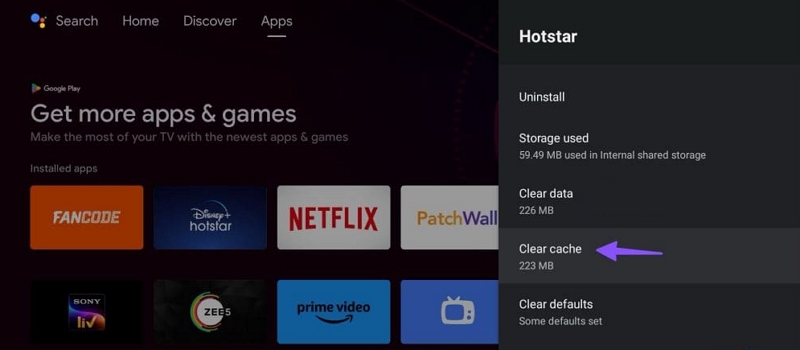
- Click Force Stop, then select Clear Cache.
Fix 2. Check Network Settings, VPNs, and Ad Filters
The HBO Max app might open without any trouble. You can browse the movie library, check account settings, or scroll through rows of posters all day. Hit Play, though, and you may get a pitch-black screen or an endless spinning wheel. This can happen when video playback encounters problems that don't affect the rest of the app. Browsing the interface and streaming video can rely on different network requests and services, so the menus may work normally even when playback fails. Network restrictions, connection issues, or problems with the streaming service itself can interrupt the video stream while leaving the rest of the interface functional.
1. Disable IPv6
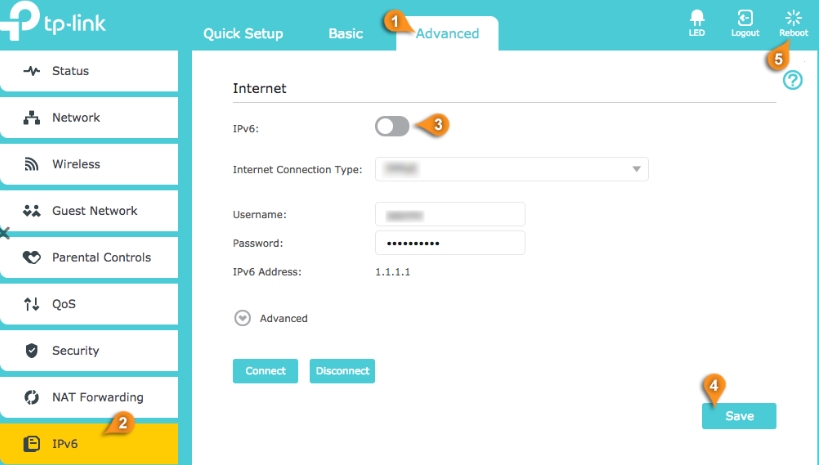
Sometimes, your router may have trouble handling IPv6 connections, preventing HBO Max from loading the video properly even when your internet connection appears to be working. If this is the cause, the video may remain stuck on a loading screen or show a black screen when you press Play. You can try to turn off IPv6 to get the issue solved.
- Log in to your router's settings page, usually at 192.168.1.1 or 10.0.0.1.
- Look for the IPv6 setting and turn it off if the option is available.
During our tests on Samsung Tizen TVs, ditching default ISP DNS resolved endless buffering circles in under ten seconds. It works.
2. Turn off VPN
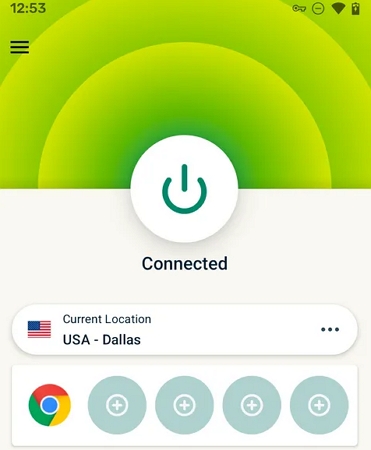
HBO Max may restrict access when it detects a VPN or proxy connection due to regional content licensing rules. If you're using a VPN service such as NordVPN, ExpressVPN, Surfshark, or Mullvad, it may prevent videos from playing or trigger a connection error. To troubleshoot the issue, disconnect your VPN or proxy and try playing the video again.
3. Check Ad Blocker
Using a network-wide ad blocker or DNS filtering service, such as Pi-hole, NextDNS, or eero Plus? Your ad blocker might be killing playback. Max forces telemetry handshakes before initiating a video feed. If your DNS sinkhole blocks those tracking endpoints, the player script hangs waiting for responses that never return.
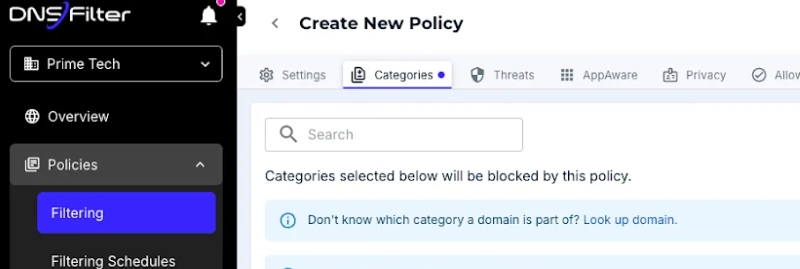
To check whether DNS filtering is the cause, temporarily disable the filtering service or try a network without it. If HBO Max starts playing videos normally, review your DNS query logs to identify any blocked domains associated with the app. Whitelist only the domains confirmed to be necessary for playback, then test again.
Fix 3: Check Playback Settings
Smart TV apps crash outright. Desktop browsers fail in weirder ways. If you get pitch-black video while audio keeps playing, your browser engine is choking. Bad GPU drivers, stale DRM components, or overzealous privacy extensions usually cause this mess.
1. Disable Hardware Acceleration
Browsers hand off video decoding to your graphics card by default. It usually works fine. But when a driver glitches, the player drops video frames and displays a blank black box while audio keeps playing. It fails silently. Turning off hardware acceleration forces your CPU to decode the H.264 or HEVC stream directly. It fixes the glitch. Here is where to find the toggle:
- Google Chrome: Go to Settings > System. Toggle off Use graphics acceleration when available.
- Microsoft Edge: Go to Settings > System and performance. Toggle off Use hardware acceleration when available.
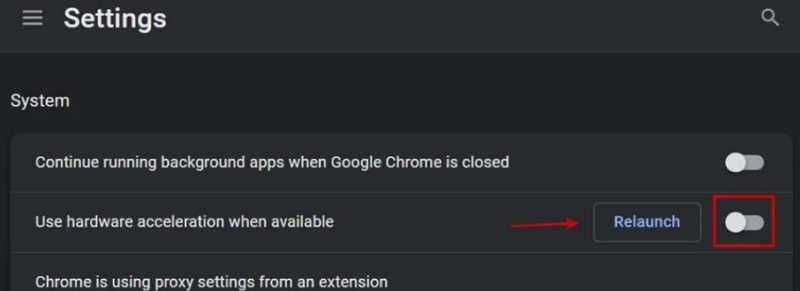
Relaunch your browser immediately. Access the HBO Max site to check if the issue is solved.
2. Update the Widevine DRM Module
HBO Max relies on Google's Widevine Content Decryption Module to stream encrypted video. If Widevine gets corrupted or falls behind on updates, the stream hangs. You can force a manual DRM update without reinstalling your browser.
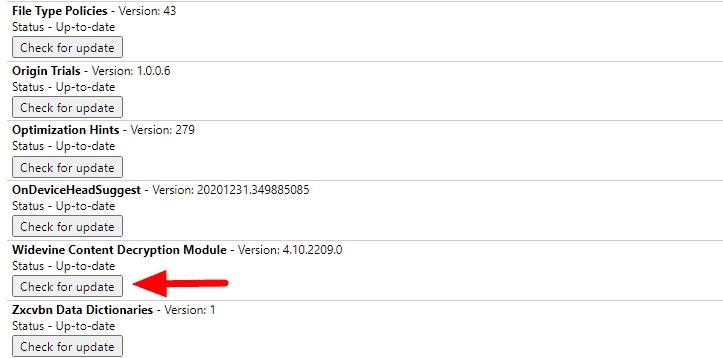
- For Chrome, type chrome://components into your address bar and hit Enter.
- Scroll down to WidevineCdm and click Check for update.
Fix 4: Check Your HDMI and Display Connections
Audio plays, but your screen stays pitch black? An HDCP handshake failure could be also the cause. HBO Max requires HDCP 2.2 support to stream select 4K content over HDMI. If your TV, streaming device, AV receiver, or another connected device cannot establish a compatible HDCP connection, the video may fail to display even if the audio continues playing.
This issue can occur in 4K setups with multiple HDMI-connected devices. AV receivers, HDMI splitters, soundbars, adapters, and cables can all affect the connection. For 4K playback, every device in the HDMI chain must support HDCP 2.2. If even one device or connection is incompatible, HBO Max may be unable to play the content in 4K.
Step-by-Step Connection Reset
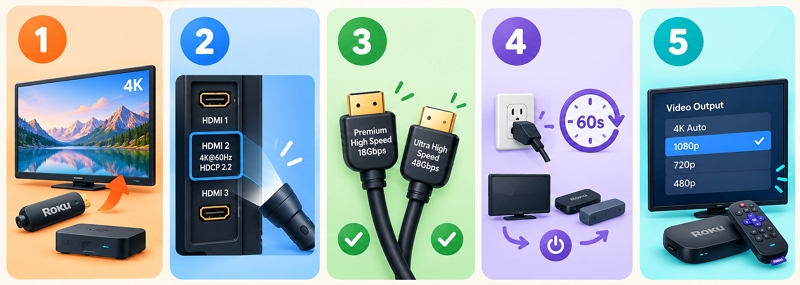
Start simple. Try these physical fixes to get your picture back:
- Bypass soundbars and receivers. Plug your streaming stick straight into an HDMI port on your TV. If picture returns instantly, your receiver or switch box is failing the HDCP 2.2 check.
- Switch to a dedicated HDCP 2.2 port. Not every HDMI port on older 4K TVs supports modern copy protection. Take a flashlight to the back panel and check the small print next to each input. Make sure your cable plugs into a socket explicitly marked HDMI 2.0, 4K@60Hz, or HDCP 2.2.
- Replace your HDMI cable. Worn or bargain cables fail under stress. They simply cannot push the 18 Gbps bandwidth required for 4K HDR streams and heavy HDCP metadata. Swap your current cord for a certified Premium High Speed HDMI cable (rated for 18 Gbps) or an Ultra High Speed 48 Gbps wire.
- Power cycle the entire system. Pull the power plugs on your TV, streaming player, and soundbar. Wait 60 seconds. Plug the TV back in first, let it boot completely, and only then power up your streaming device. That sequence forces every chip in the chain to execute a clean hardware handshake.
- Lower display resolution. Head into your streaming player settings (like on a Roku Ultra or Apple TV 4K). Force the video output down from 4K Auto to 1080p. If the stream suddenly works at 1080p, your cable or audio receiver is choking on 4K HDCP handshakes.
Conclusion
A black screen can be frustrating, especially when HBO Max seems to be working normally otherwise. The key is to identify whether the problem comes from the app, your device, or the connection between them rather than trying random fixes. To avoid HBO Max playback issues in the future, consider watching videos offline. MedVioo Video Converter lets you convert supported HBO Max videos to MP4, so you can play the converted files with a local video player and won't be bothered with streaming issues.