

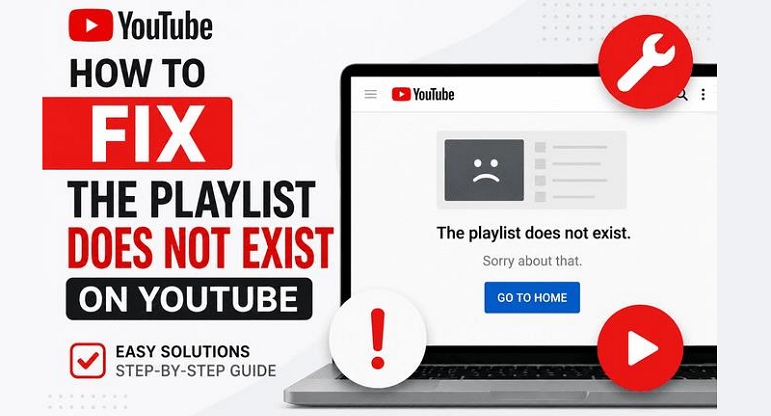
Seeing the "Playlist does not exist" error on YouTube can be frustrating, especially when the playlist was working just moments earlier. The playlist may still display its thumbnail and video count, making it difficult to tell whether it's actually unavailable.
This isn't an isolated issue. Some users regained access by switching accounts or using Incognito mode, while others found the error resolved automatically. That suggests the playlist may still exist despite the error. All in all, a playlist that won't open isn't always permanently lost. This guide covers the most common reasons behind the "The playlist does not exist" error and the steps you can take to fix it.
Quick Check Before Fixing The Playlist Does Not Exist on YouTube
Before trying any fixes, check whether YouTube is down. Temporary server issues can trigger the "The playlist does not exist" error even when your playlist still exists. If so, wait for YouTube to resolve the issue.
Check YouTube's Server Status
What to Do Next
How to Fix The Playlist Does Not Exist on YouTube
Now that you've ruled out a YouTube outage, work through the fixes below one by one. The steps below can help you restore access before assuming the playlist is gone.
Fix 1. Access YouTube Playlist with Another Account or Without Logging In
Check whether the error is tied to your account first. That said, if the playlist opens under another account or while signed out, the playlist is likely unaffected and your current account is causing the issue.
You can continue watching it as is or contact YouTube Support to resolve the account-related issue.
Steps to Access YouTube Playlist with Another Account:
Step 1. Copy the playlist URL.
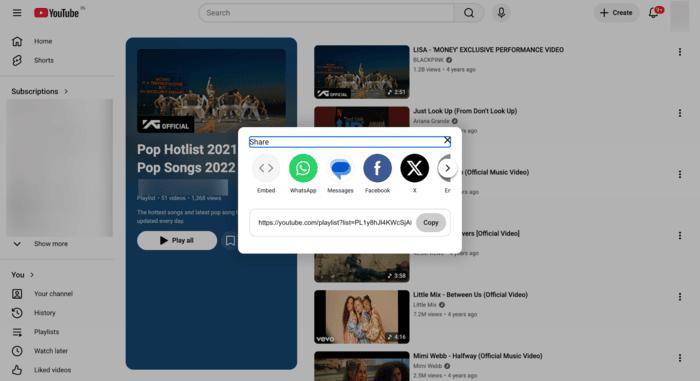
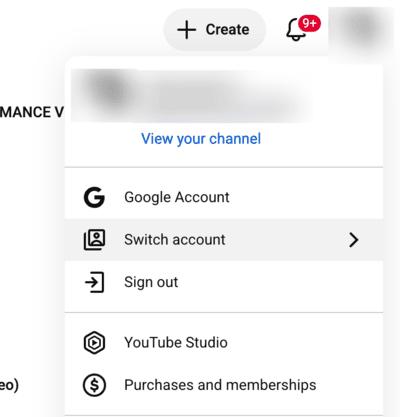
Step 2. Sign out of your YouTube account or switch to another Google account.
Step 3. Paste the playlist and press Enter to open the playlist again.
Fix 2. Watch YouTube Playlist in Incognito Mode
Incognito mode opens YouTube without using your regular browser's cached data, cookies, or extensions. When browser data or extensions are behind the issue, opening the playlist in Incognito mode can often restore access. However, this fix is temporary. To solve the trouble completely, it’s suggested to clear your browser's cache and cookies, and disable unnecessary extensions. Reinstall the browser if the error continues.
Steps to Access YouTube Playlist in Incognito Mode:
Step 1. Launch a new Incognito or Private browsing session.
Step 2. Access the playlist that shows “This playlist doesn’t exist”.
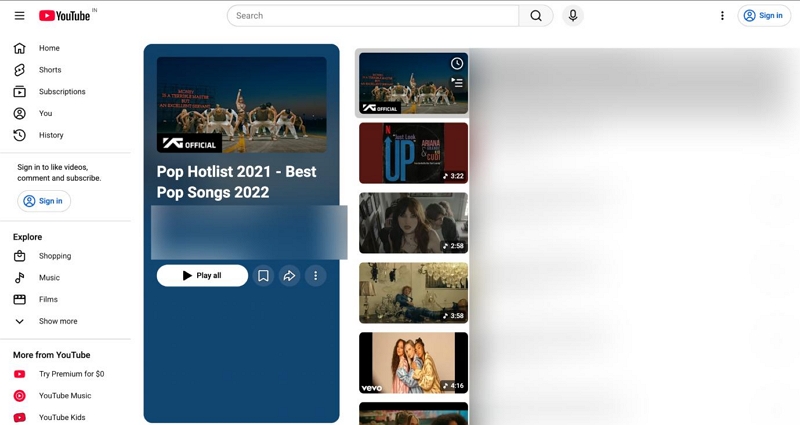
Step 3. Sign in only if required.
Step 4. Check whether the playlist loads.
Fix 3. Clear YouTube Cache
If the playlist opens after switching accounts or using Incognito mode, this fix is worth trying next. This usually points to outdated cache or cookies in your regular browser session. Removing them allows YouTube to fetch the latest playlist information instead of relying on stored data.
For YouTube Mobile App
On Android
Step 1. Open Settings.
Step 2. Go to Apps > YouTube. Tap Storage & cache.
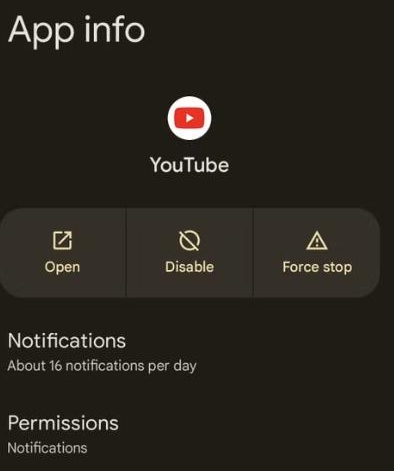
Step 3. Select Clear cache.
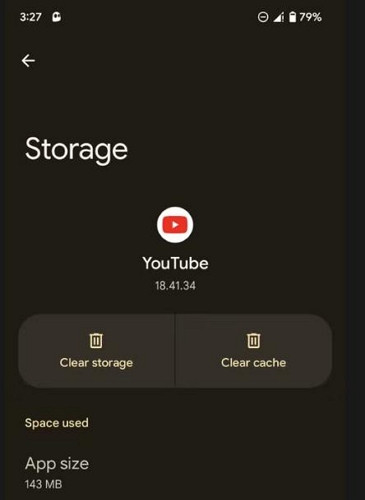
Step 4. Reopen the YouTube app. And check whether the playlist loads.
On iPhone
Unlike Android devices, iPhone doesn't provide a dedicated option to clear an app's cache. Instead:
Step 1. From Settings, navigate to General > iPhone Storage.
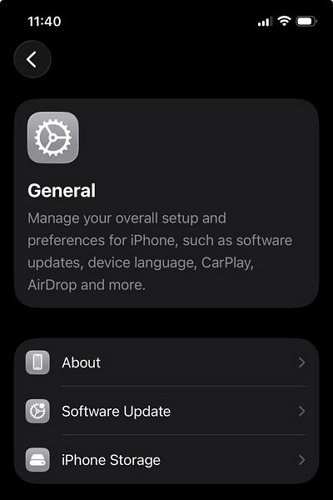
Step 2. Select YouTube.
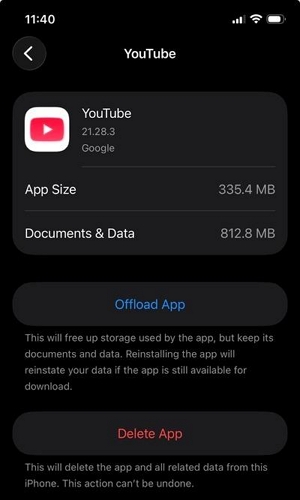
Step 3. Tap Offload App to free up the app while keeping your YouTube data and settings.
Step 4. Open the App Store and reinstall YouTube.
Step 5. Sign back in to YouTube and try opening the playlist again.
For YouTube Web Player
Depending on your browser, the process may vary slightly.
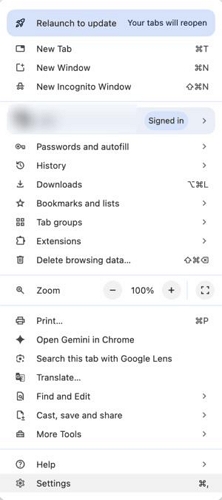
Step 1. Open your browser's Settings.
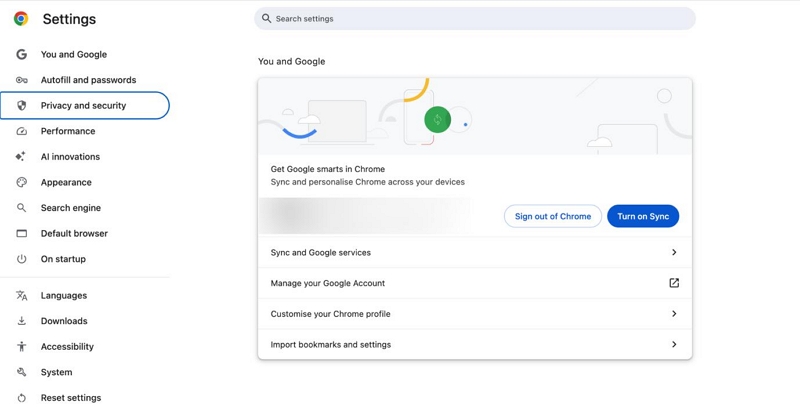
Step 2. Go to Privacy & Security.
Step 3. Select Clear browsing data.
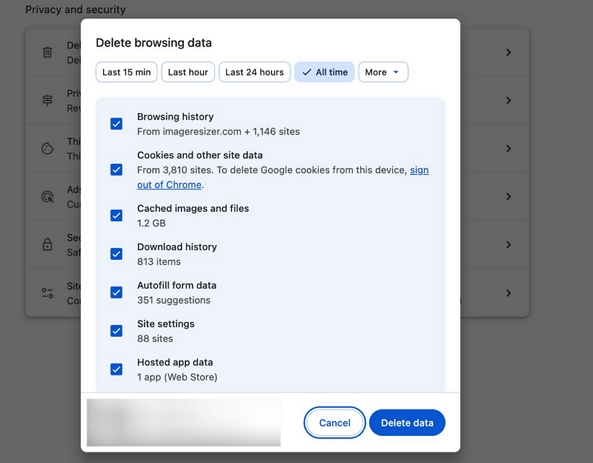
Step 4. Select Cookies and other site data and Cached images and files.
Step 5. Click Delete data.
Step 6. Reopen YouTube and sign back in to your Google account before checking the playlist again.
The playlist should now load correctly if outdated browser data was causing the issue. If not, proceed to the next fix to recover your playlist information.
Fix 4. Find and Rebuild YouTube Playlist
If the playlist still won't load, your next goal is recovering its contents rather than fixing the error itself. Google Takeout can export your saved playlist data, allowing you to identify video titles, recover videos that are still publicly available, and rebuild the playlist with much less effort.
Steps to Locate Videos in an Inaccessible YouTube Playlist:
Step 1. Access Google Takeout and log in to the Google account where the playlist was originally saved.
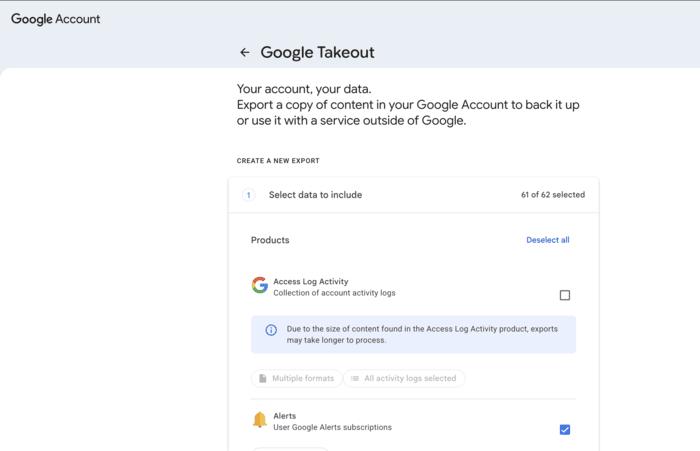
Step 2. Select YouTube and YouTube Music as the data to export.
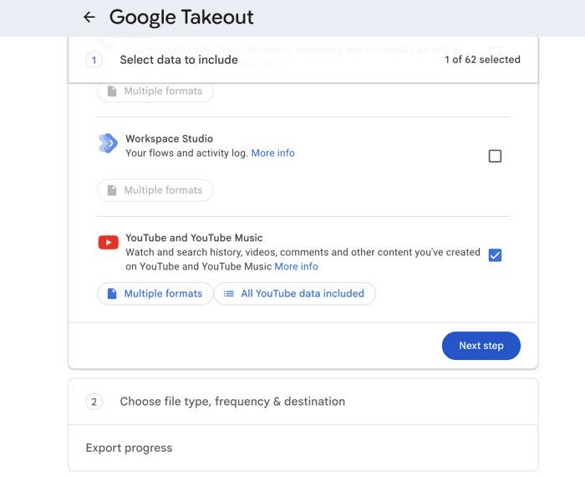
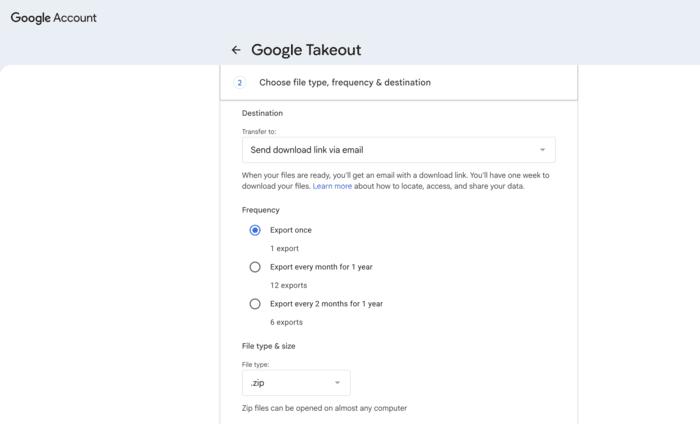
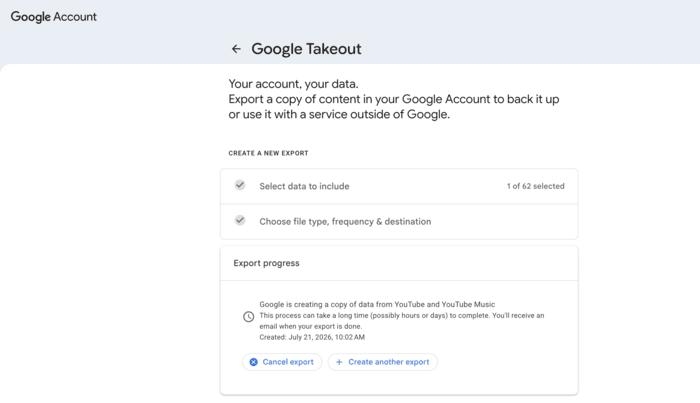
Step 3. Create the export and wait for Google to prepare your downloadable archive.
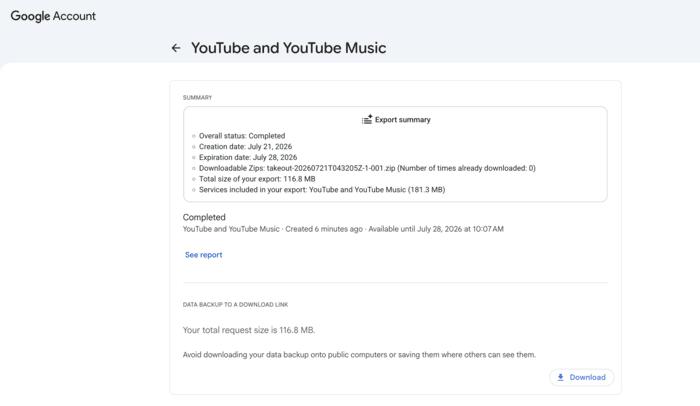
Step 4. Download the completed export, then unzip the downloaded file.
Step 5. Open the exported HTML or CSV playlist file to view the playlist names and video titles it contains.
Step 6. Search for the available videos on YouTube and save them to a new playlist or Watch Later.
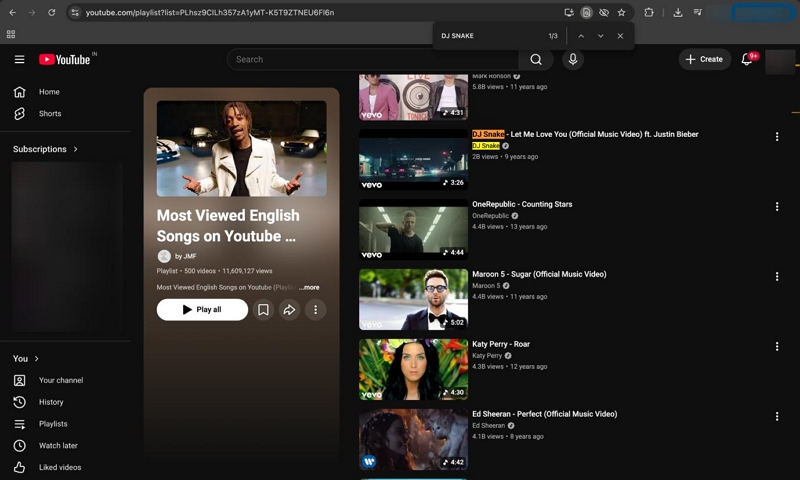
Recovering your playlist is only half the job. Once you have the video titles, your browser's Find on Page feature helps you quickly locate them within long playlists. That means less scrolling and a faster way to verify or rebuild your playlist.
Steps to Rebuild YouTube Playlists:
Step 1. Open YouTube and search for videos that were in the missing playlist by entering their title, artist, channel name, or relevant keywords.
Step 2. Open the matching video from the search results.
Step 3. Click Save below the video.
Step 4. Select Create new playlist, enter a playlist name, choose its privacy setting (Public, Unlisted, or Private), and click Create.
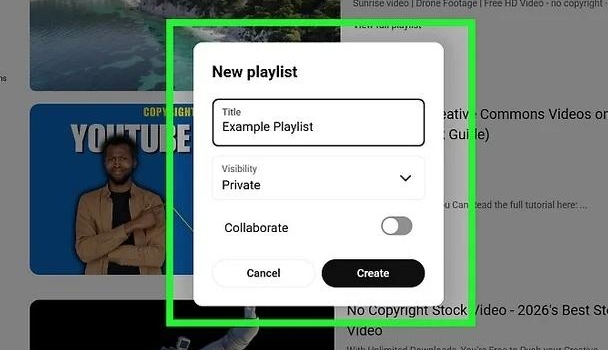
Step 5. Add the rest of the videos you find until the new playlist is complete.
How to Back Up YouTube Videos to Avoid Losing Access
While rebuilding a playlist lets you restore your saved videos, it still leaves you dependent on YouTube's availability. For users who prefer lasting access, a dedicated desktop video converter provides a convenient way to build an offline collection.
MedVioo Video Converter is a desktop video converter for Windows and Mac, which supports processing videos from selected streaming sources for offline playback and long-term storage. It's a practical option for users who want to preserve important videos before a YouTube playlist becomes unavailable/private, changes, or is removed.
MedVioo can export YouTube playlists at 10x speed, saving your time when downloading a large one. Before the conversion, you can customize the output format, adjust the output quality and change subtitle settings. Finally, you will find the videos in a playlist saved in the original order for better organization and smooth playback.
Steps to Save YouTube Videos as MP4 Files for Backup with MedVioo
Step 1. Install and launch MedVioo Video Converter on your computer. Then paste a YouTube playlist URL into the search bar.
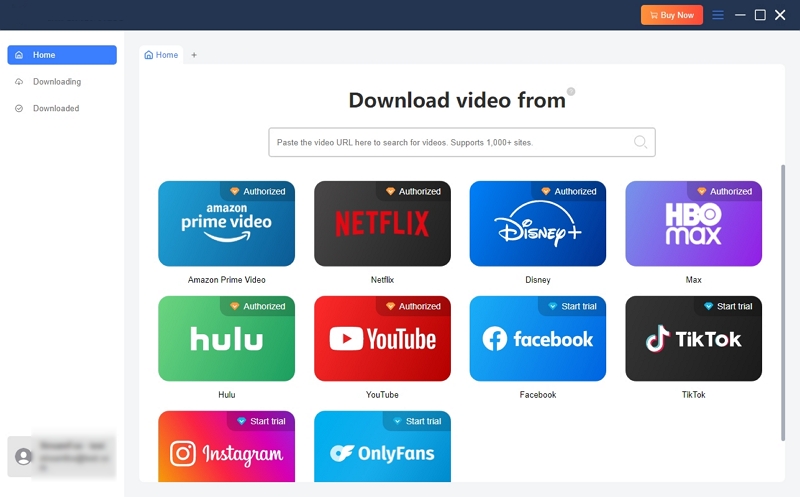
Step 2. Once the video playlist is detected, click the cloud icon to add it to the conversion list.
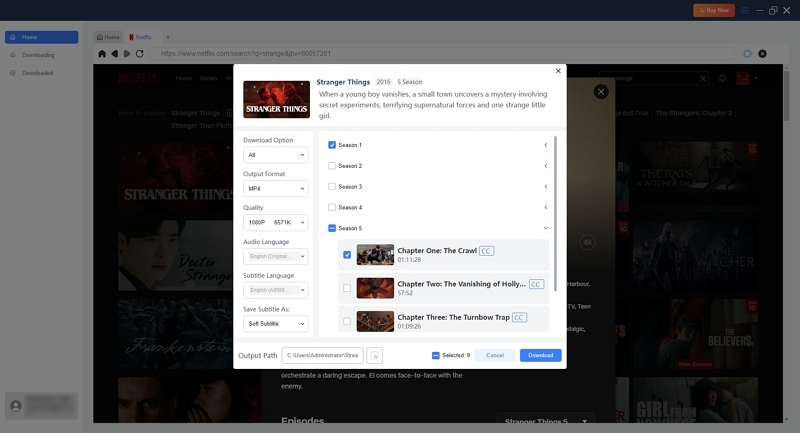
Step 3. Choose MP4 as the output format. And then adjust the resolution, video quality, subtitle preferences, and output folder to match your backup needs.
Step 4. Select the videos you need to convert. Then click Download to begin the conversion.
Step 5. After the conversion finishes, open the Downloaded section and click View Output File to access your MP4 videos.
Final Words
That's all! “The Playlist does not exist" error doesn’t always mean your playlist has been deleted. Problems with your account, browser glitches, or YouTube's services may temporarily stop the playlist from loading.
Begin by finding what is causing the error before applying different fixes. If the playlist still can't be restored, Google Takeout can help recover playlist information for rebuilding it.
For playlists you want to keep long term, prevention is just as important as recovery. Creating an offline backup with MedVioo Video Converter helps forever preserve your videos.