

Learning how to add videos to YouTube playlist will help you to organize your favorite content on the YouTube more easily. The tutorials, music, lectures or entertainment videos can be placed in a playlist and thus all the things are kept in one convenient place.
With the YouTube video playlist, you do not need to search your videos on and on again. The guide will guide you through the process of adding videos to playlists on YouTube on different devices, including mobile, desktop, and TV. You will also learn how creators can make and control playlists on their own channels to organize better and get the viewers more involved.
How to Add Videos to Playlists on YouTube as a Viewer
One of the simplest ways to organize content that you like on YouTube is to add videos to playlists. You can save videos to watch, collect helpful tutorials, or build playlists depending on your interests.
Here are the ways to create YouTube video playlists on your phone, computer and even TV in order to keep your content neat and simple to access.
From Watch Screen
The way is straightforward, which saves a video directly through the watch screen. Steps of various devices are as follows.
On iPhone/Android
Method 1: Use the Save Icon
- Play any video on the YouTube app.
- Click on the Save button (which is under the video).
- You will see a pop-up at the bottom screen. Choose the existed playlist to save the video. Or save the video to a new playlist by tapping New Playlist.
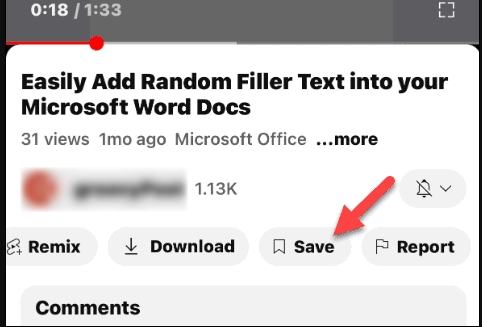
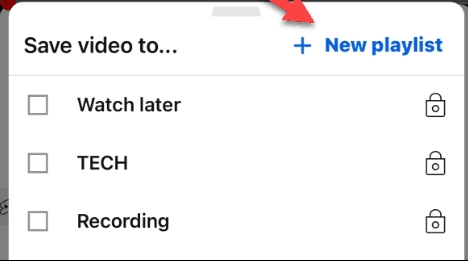
That’s it — the video is now organized exactly where you want it.
On PC/Mac
Tip: Compared with the steps on mobile, this way is more organized and the management of playlists is somewhat easier with all things being visible on the screen. sort several videos simultaneously.
Here’s how to do it:
- Open your browser and go to YouTube. Ensure that you have logged in to your account.
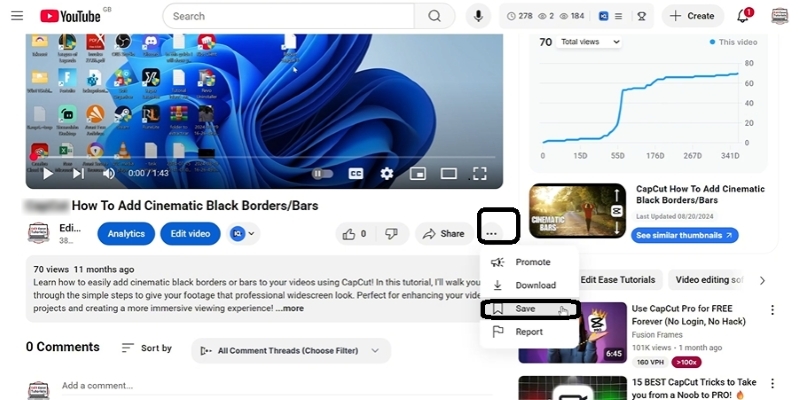
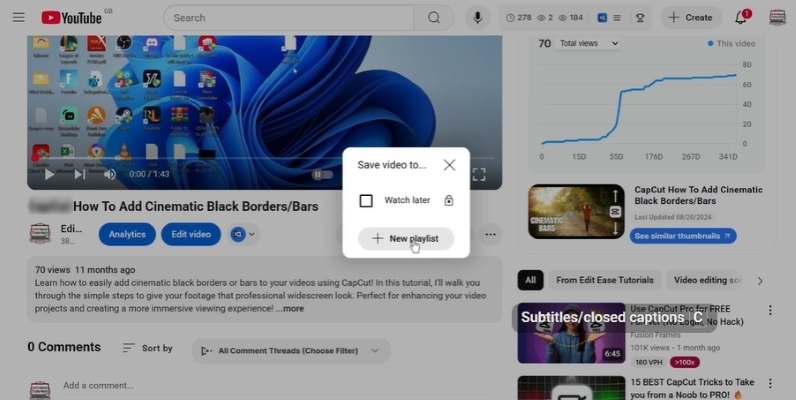
- Locate and play the video that you want in a playlist. Beneath the video, you will see three dots beside the Share button. Click it to select Save.
- In case you already have playlists, you just have to pick one. If not, click Create new playlist.
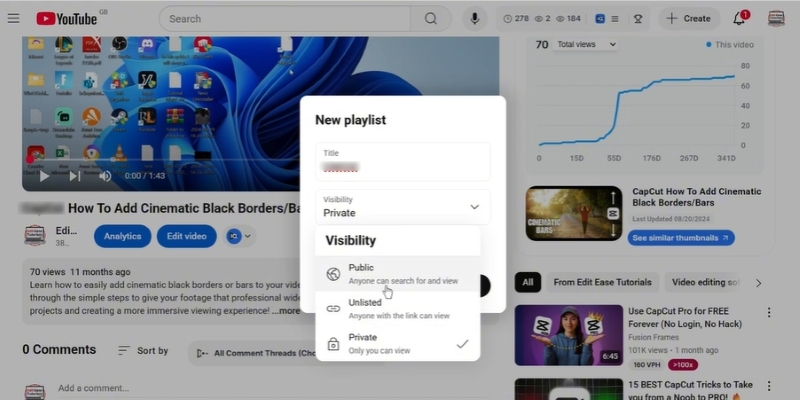
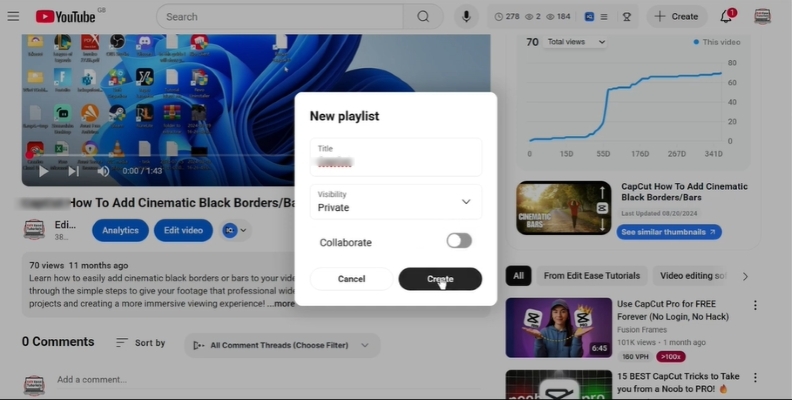
- Then enter a playlist name and choose Visibility (Private, Unlisted, or Public).
- Click Create to complete the save.
On TV
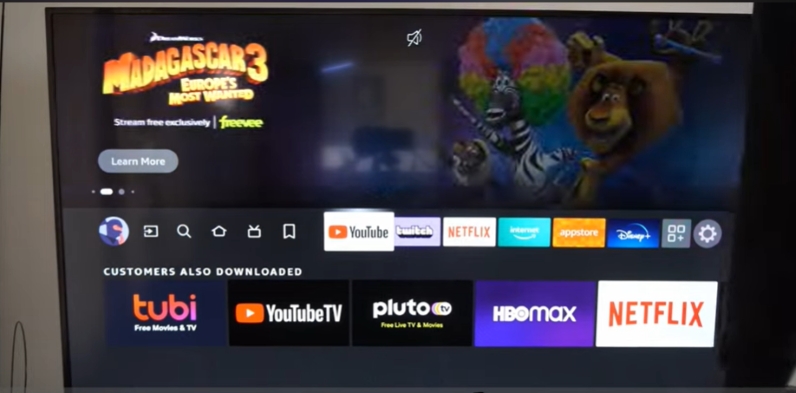
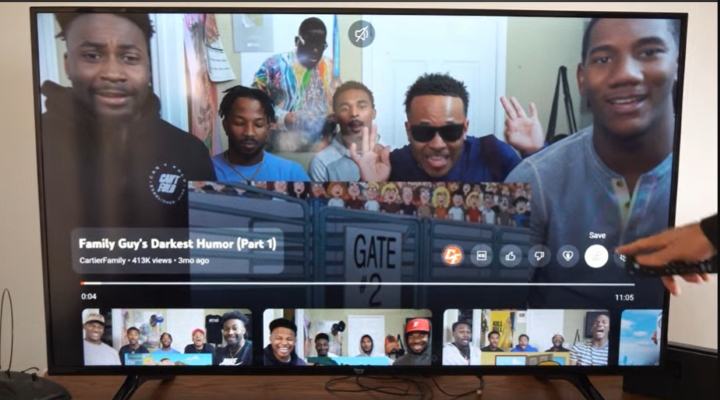
- Press the power button of your TV, open the YouTube app, and find the video you would like to save.
- Press up on your remote to see the timeline.
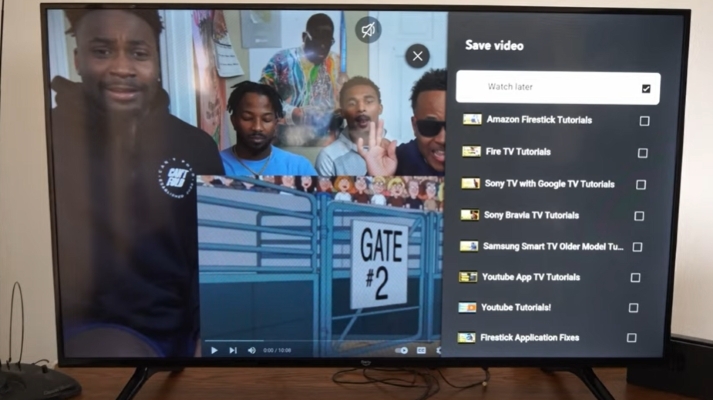
- Press up again to highlight the Save icon.
- Select Save. Then, choose Watch Later or one of your existing playlists.
- After saving a video, you can go back to the Library section anytime to view it in Watch Later or inside your saved playlists.
From Feed
From Feed, you can save the recommended or interesting videos to a playlist to watch later, which is useful when you lack time to enjoy them immediately. Here’s how you can find and use your YouTube playlist on mobile, desktop, and TV.
On iPhone/Android
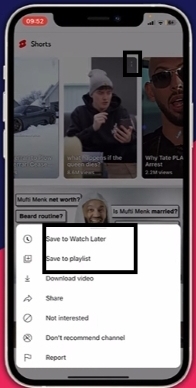
- Open the YouTube app. Find any video in your feed.
- Tap and hold the video or tap the three dots.
- Select Save to Watch Later or Save to playlist of your own choice.

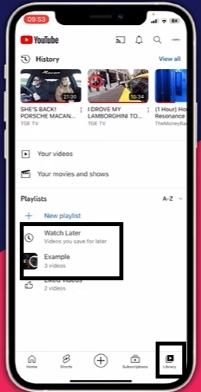
To watch the saved videos, tap Library and select the playlist where stores the videos.
On PC/Mac
- Access YouTube in your browser.
- Click the 3-dot next to the video, select Watch Later or Save to playlist.
- Video can be saved in an existing playlist. Or you can create a new playlist to save it.
From Search
You can add videos to YouTube playlists from the results of the search. This is the best way to gather multiple videos within a relatively short time when finding a particular subject or interest.
On iPhone/Android
- Search for the video you want.
- Tap threedots (⋮) under the wanted video. Next, either choose Save to playlist or Save to Watch Later.
- Select an already-made playlist or create a new one.
On PC/Mac
- Go to YouTube and type your keyword in the search box (e.g., tutorials, reviews, or any other topic that you are studying). You will find a list of search results on your screen.
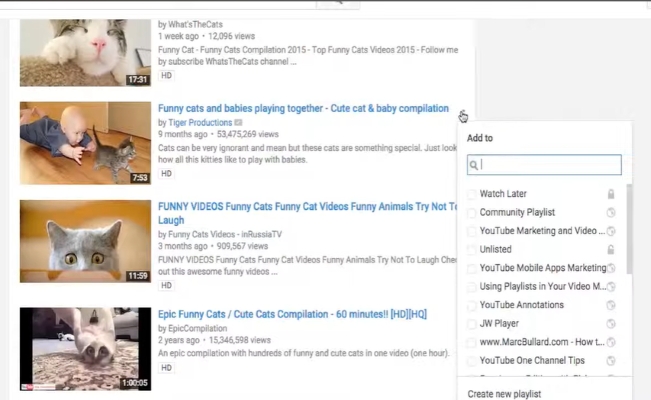
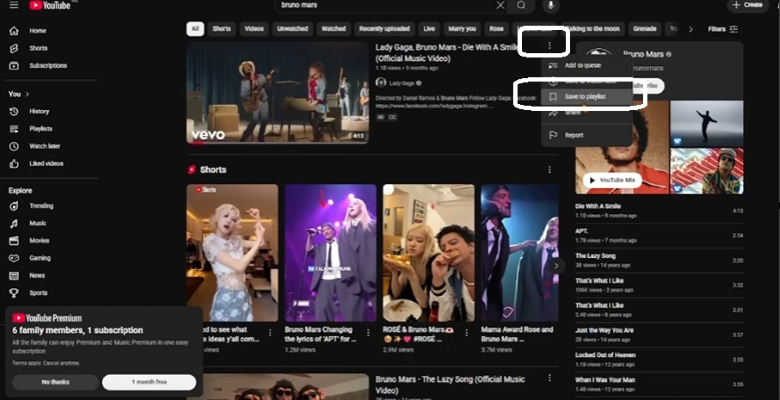
- Instead of clicking on the video and opening it, roll your mouse over the thumbnail of a video. The right-hand side will contain three dots. Click it.
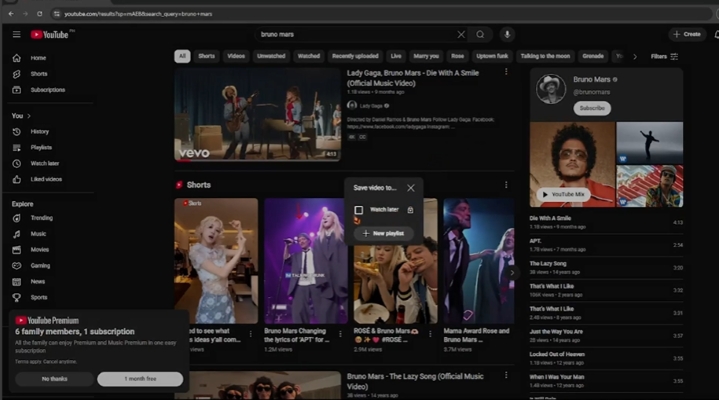
- Select Save and choose a playlist. The video will be inserted immediately without disrupting you when browsing.
On TV
- Go to YouTube and login in it.
- Search for the video you want.
- Select the video and then press the three dots button using your remote.
- Select Save to Playlist to save the video in an old playlist.
- Alternatively, press + New playlist to create a new playlist and the video will be added to it.
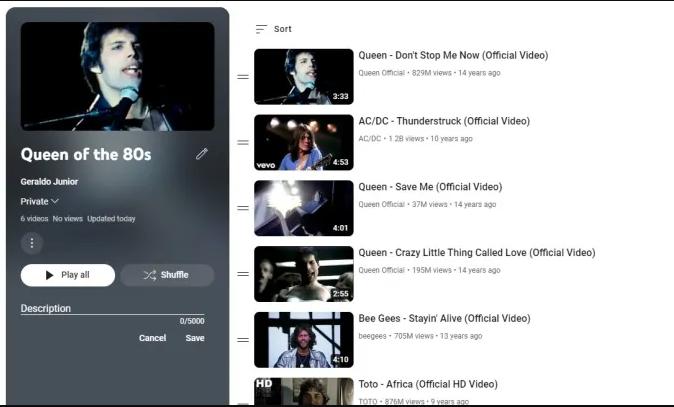
How to Move a Video up in a YouTube Playlist
Your most recently added videos will usually appear at the top of the list. When you play videos from the list, the first one will play by default. However, you can also position the videos you want to watch first, or start playback from the first video you added. In this case, you need to adjust the video order.
- Go to youtube.com where you should log in. Next, click on your channel Playlists from the left pane.
- Find the video you want to move.
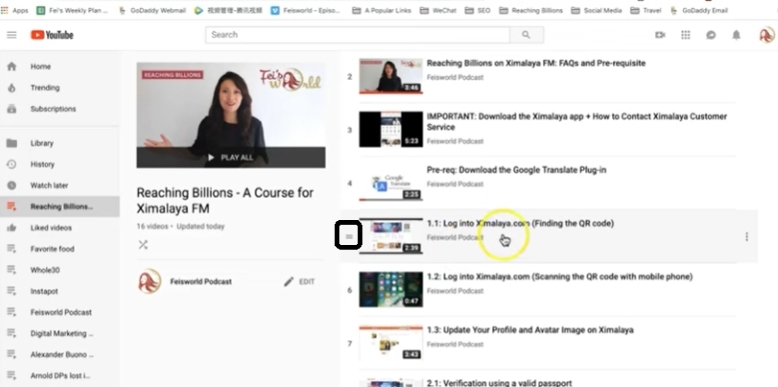
- Grab the two-line “drag” icon next to the video and drag it to the desired position. Changes are automatically applied once you move the video.
Note: You can watch your YouTube playlist in random order by clicking Shuffle.
How to Download YouTube Playlists for Offline Watching
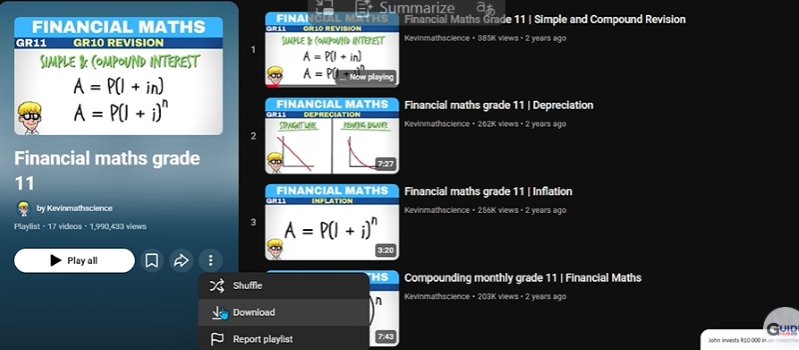
The official YouTube Premium allows downloading YouTube playlists safely, and you can also use a third-party utility, such as MedVioo Video Converter, in case you need a bit more flexibility. Here’s how to download YouTube playlists with premium:
- Open the YouTube app and login it with your Premium account.
- Navigate to the playlist you want to download and tap the menu icon next to it.
- Click Download and choose your preferred video quality.
- After a while, the playlist will be saved in the Downloads section of the app for offline viewing.
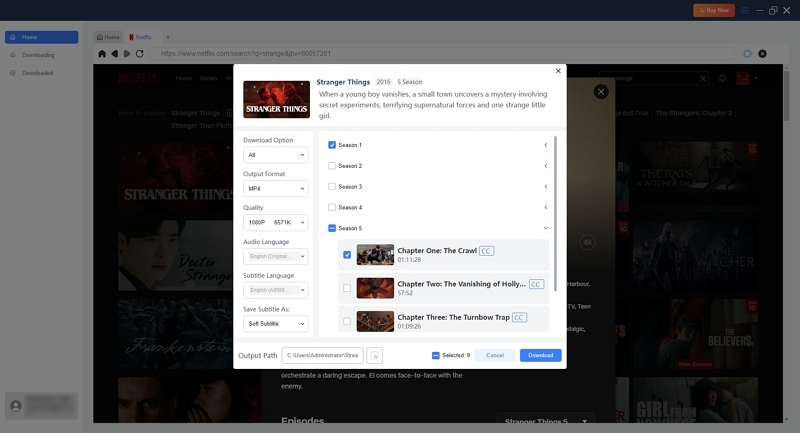
In case you wish you had more control over the way your playlist is saved, you can consider using MedVioo Video Converter. It is handy to users who like to store videos on their PC rather than use apps exclusively. MedVioo can save YouTube videos or playlists as local files or folders. It supports various video formats, including MP4, MOV, and MKV, and offers different output qualities such as 1080p and 4K. Whether you are saving a 1-hour tutorial or converting a playlist with 10 videos, MedVioo can handle the saving and conversion quickly with up to 10X faster speed.
How to Create Playlists on YouTube Channel as a Creator
As a content creator, one of the best things you can do with your YouTube channel is to make playlists to meet the needs of your viewers and to ease the organization of your videos. Playlists assist in sorting similar material and your audience can watch more of your videos in one location. Here's how you can do it easily.
On YouTube Channel
If you’ve only uploaded a few videos, adding playlists to your channel is more convenient.
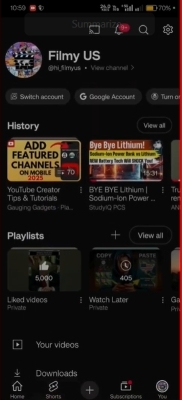
- Run YouTube, go to your channel and select the + icon next to Playlists.
- Name your playlist and choose visibility: Public, Unlisted or Private.
- Tap Create. Your playlist is now ready.
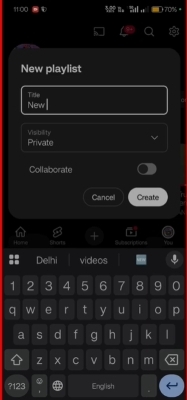
Tip: You can make your playlist Private initially and then Public after everything seems to be in place.
On YouTube Studio
YouTube Studio can make it easier, in case you are serious about managing your channel, particularly in the case of long-form content or adding several videos at once.
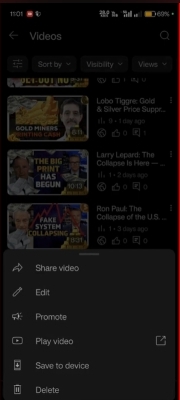
- Tap on the Content tab in YouTube Studio.
- Find the video you want to add and tap its menu(3-dot) icon.
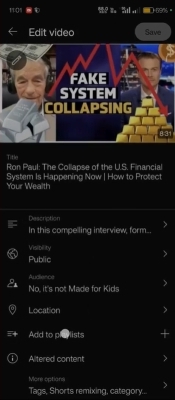
- Select Edit, followed by Add to playlists.
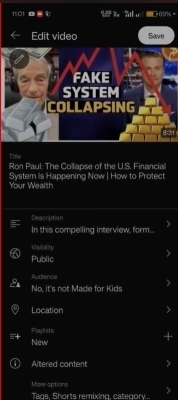
- Select your playlist and click Done. Finally, hit Save.
Note: Active playlist use is not only more organized but also enhances time spent on the channel, since the viewers automatically transition to the next video.
Final Verdict
It is easy and effective to add videos to playlists on YouTube with the help of this post. The process is fast whether you are using mobile, desktop, or TV. To creators, they make their channel look more organized and business like. When you start using playlists on a regular basis, it becomes much easier to control content.